My favorites | English | Sign in

Google Maps API

Creating a Store Locator with PHP, MySQL & Google Maps

Pamela Fox, Google Geo APIs Team
January 2008

This is the fifth article in our series on using PHP/MySQL with Google Geo APIs. If you're a PHP/MySQL developer, you may also be interested in our articles on loading markers from a database and creating KML from a database.

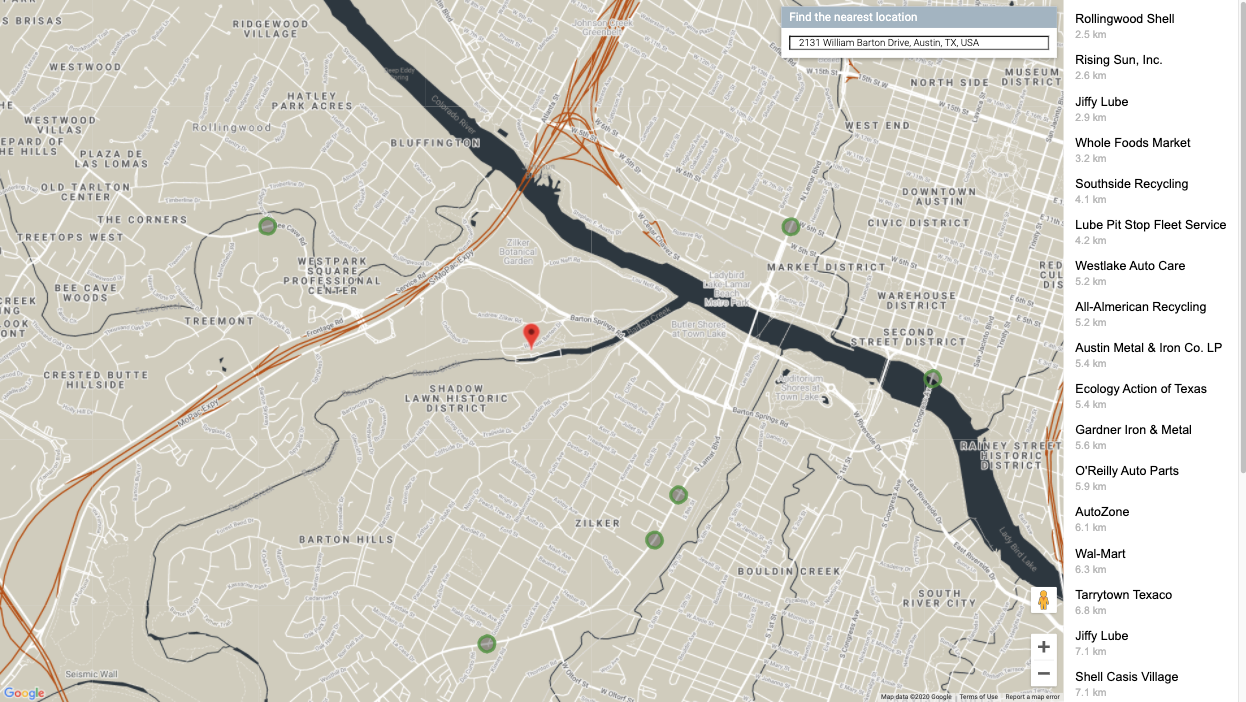
This tutorial is intended for developers who are familiar with PHP/MySQL, and want to learn how to use Google Maps with a MySQL database to create a store locator-type app. After completing this tutorial, you will have a database of locations and a webpage that lets a user enter their address and see markers on a map for the locations nearest to them, within a chosen distance restriction.

The tutorial is broken up into the following steps:


Creating the table

When you create the MySQL table, you want to pay particular attention to the lat and lng attributes. With the current zoom capabilities of Google Maps, you should only need 6 digits of precision after the decimal. To keep the storage space required for our table at a minimum, you can specify that the lat and lng attributes are floats of size (10,6). That will let the fields store 6 digits after the decimal, plus up to 4 digits before the decimal, e.g. -123.456789 degrees. Your table should also have an id attribute to serve as the primary key.

Note: This tutorial uses location data that already have latitude and longitude information needed to plot corresponding markers. If you're trying to use your own data that don't yet have that information, use a batch geocoding service to convert the addresses into latitudes/longitudes. You can check out our tutorial on using the Google Maps API geocoder, or check out this link for a good list of geocoders: http://groups.google.com/group/Google-Maps-API/web/resources-non-google-geocoders

If you prefer interacting with your database through the phpMyAdmin interface, here's a screenshot of the table creation.

If you don't have access to phpMyAdmin or prefer using SQL commands instead, here's the SQL statement that creates the table. phpsqlajax_createtable.sql:

CREATE TABLE `markers` (
  `id` INT NOT NULL AUTO_INCREMENT PRIMARY KEY ,
  `name` VARCHAR( 60 ) NOT NULL ,
  `address` VARCHAR( 80 ) NOT NULL ,
  `lat` FLOAT( 10, 6 ) NOT NULL ,
  `lng` FLOAT( 10, 6 ) NOT NULL 
) ENGINE = MYISAM ;

Populating the table

After creating the table, it's time to populate it with data. The sample data we provide below is for about 180 pizzarias scattered across the United States. In phpMyAdmin, you can use the IMPORT tab to import various file formats, including CSV (comma-separated values). Microsoft Excel and Google Spreadsheets both export to CSV format, so you can easily transfer data from spreadsheets to MySQL tables through exporting/importing CSV files.

Here's a snippet of the sample data in CSV format. phpsqlsearch_data.csv:

Frankie Johnnie & Luigo Too,"939 W El Camino Real, Mountain View, CA",37.386339,-122.085823
Amici's East Coast Pizzeria,"790 Castro St, Mountain View, CA",37.38714,-122.083235
Kapp's Pizza Bar & Grill,"191 Castro St, Mountain View, CA",37.393885,-122.078916
Round Table Pizza: Mountain View,"570 N Shoreline Blvd, Mountain View, CA",37.402653,-122.079354
Sausage Factory Inc,"517 Castro St, San Francisco, CA",37.389578,-122.081463
Tony & Alba's Pizza & Pasta,"619 Escuela Ave, Mountain View, CA",37.394011,-122.095528
Oregano's Wood-Fired Pizza,"4546 El Camino Real, Los Altos, CA",37.401724,-122.114646
...

Here's a screenshot of the import options used to transform this CSV into table data:

If you'd rather not use the phpMyAdmin interface, here's a snippet of the SQL statements that accomplish the same results. phpsqlsearch_data.sql:

INSERT INTO `markers` (`name`, `address`, `lat`, `lng`) VALUES ('Frankie Johnnie & Luigo Too','939 W El Camino Real, Mountain View, CA','37.386339','-122.085823');
INSERT INTO `markers` (`name`, `address`, `lat`, `lng`) VALUES ('Amici\'s East Coast Pizzeria','790 Castro St, Mountain View, CA','37.38714','-122.083235');
INSERT INTO `markers` (`name`, `address`, `lat`, `lng`) VALUES ('Kapp\'s Pizza Bar & Grill','191 Castro St, Mountain View, CA','37.393885','-122.078916');
INSERT INTO `markers` (`name`, `address`, `lat`, `lng`) VALUES ('Round Table Pizza: Mountain View','570 N Shoreline Blvd, Mountain View, CA','37.402653','-122.079354');
INSERT INTO `markers` (`name`, `address`, `lat`, `lng`) VALUES ('Sausage Factory Inc','517 Castro St, San Francisco, CA','37.389578','-122.081463');
INSERT INTO `markers` (`name`, `address`, `lat`, `lng`) VALUES ('Tony & Alba\'s Pizza & Pasta','619 Escuela Ave, Mountain View, CA','37.394011','-122.095528');
INSERT INTO `markers` (`name`, `address`, `lat`, `lng`) VALUES ('Oregano\'s Wood-Fired Pizza','4546 El Camino Real, Los Altos, CA','37.401724','-122.114646');
...

Finding locations nearby with MySQL

To find locations in our markers table that are within a certain radius distance of a given latitude/longitude, you can use a SELECT statement based on the Haversine formula. The Haversine formula is used generally for computing great-circle distances between two pairs of coordinates on a sphere. An in-depth mathemetical explanation is given by Wikipedia and a good discussion of the formula as it relates to programming is on Movable Type's site.

Here's the SQL statement that will find the closest 20 locations that are within a radius of 25 miles to the 37, -122 coordinate. It calculates the distance based on the latitude/longitude of that row and the target latitude/longitude, and then asks for only rows where the distance value is less than 25, orders the whole query by distance, and limits it to 20 results. To search by kilometers instead of miles, replace 3959 with 6371.

SELECT id, ( 3959 * acos( cos( radians(37) ) * cos( radians( lat ) ) * cos( radians( lng ) - radians(-122) ) + sin( radians(37) ) * sin( radians( lat ) ) ) ) AS distance FROM markers HAVING distance < 25 ORDER BY distance LIMIT 0 , 20;

Outputting XML with PHP

Now that you have the table and the SQL statement, you can put them together to output the search results into an XML format that our map can retrieve through asynchronous JavaScript calls. If the code provided here does not work with your PHP configuration, read through the Outputting XML with PHP section of our Using PHP/MySQL with Google Maps article. The only difference between the various PHP code samples shown there and the code needed for this article will be the SQL statement and the rows that are outputted in the XML.

First, you should put your database connection information in a separate file. This is generally a good idea whenever you're using PHP to access a database, as it keeps your confidential information in a file that you won't be tempted to share. In the Maps API forum, we've occasionally had people accidentally publish their database connection information when they were just trying to debug their XML-outputting code. The file should look like this, but with your own database information filled in. phpsqlsearch_dbinfo.php:

<?
$username="username";
$password="password";
$database="username-databaseName";
?>

Using PHP's DOM functions to output XML

First, check your configuration and see if you're using PHP5. If so, continue to the explanation and code below. If you aren't, then you can use echo to output XML, as used in this sample code.

In PHP, first initialize a new XML document and create the "markers" parent node. Then connect to the database, execute the SELECT by distance query discussed above on the markers table, and iterate through the results.For each row in the table (each location), create a new XML node with the row attributes as XML attributes, and append it to the parent node. Then dump the XML to the screen.

Note: Since this PHP sends user input in a MySQL statement, this code uses the mysql_real_escape_string technique of avoiding SQL injection. A more elegant solution may be to use MySQL prepared statements, though implementation varies on the PHP version and DB wrapper used.

Note: If your database contains international characters or you otherwise need to force UTF-8 output, you can use utf8_encode on the outputted data.

The PHP file that does all that is shown below (phpsqlsearch_genxml.php):

<?php  
require("phpsqlsearch_dbinfo.php");

// Get parameters from URL
$center_lat = $_GET["lat"];
$center_lng = $_GET["lng"];
$radius = $_GET["radius"];

// Start XML file, create parent node
$dom = new DOMDocument("1.0");
$node = $dom->createElement("markers");
$parnode = $dom->appendChild($node);

// Opens a connection to a mySQL server
$connection=mysql_connect (localhost, $username, $password);
if (!$connection) {
  die("Not connected : " . mysql_error());
}

// Set the active mySQL database
$db_selected = mysql_select_db($database, $connection);
if (!$db_selected) {
  die ("Can\'t use db : " . mysql_error());
}

// Search the rows in the markers table
$query = sprintf("SELECT address, name, lat, lng, ( 3959 * acos( cos( radians('%s') ) * cos( radians( lat ) ) * cos( radians( lng ) - radians('%s') ) + sin( radians('%s') ) * sin( radians( lat ) ) ) ) AS distance FROM markers HAVING distance < '%s' ORDER BY distance LIMIT 0 , 20",
  mysql_real_escape_string($center_lat),
  mysql_real_escape_string($center_lng),
  mysql_real_escape_string($center_lat),
  mysql_real_escape_string($radius));
$result = mysql_query($query);

$result = mysql_query($query);
if (!$result) {
  die("Invalid query: " . mysql_error());
}

header("Content-type: text/xml");

// Iterate through the rows, adding XML nodes for each
while ($row = @mysql_fetch_assoc($result)){
  $node = $dom->createElement("marker");
  $newnode = $parnode->appendChild($node);
  $newnode->setAttribute("name", $row['name']);
  $newnode->setAttribute("address", $row['address']);
  $newnode->setAttribute("lat", $row['lat']);
  $newnode->setAttribute("lng", $row['lng']);
  $newnode->setAttribute("distance", $row['distance']);
}

echo $dom->saveXML();
?>

Checking that the XML output works

Call this PHP script from the browser to make sure it's producing valid XML. If you suspect there's a problem with connecting to your database, you may find it easier to debug if you remove the line in the file that sets the header to the text/xml content type, as that usually causes your browser to try to parse XML and may make it difficult to see your debugging messages.

If the script is working correctly and you append reasonable sample query parameters to the URL (e.g. ?lat=37&lng=-122&radius=25), you should see XML output like this (phpsqlsearch_expectedoutput.xml):

<?xml version="1.0"?>

<markers><marker name="Round Table Pizza: Mountain View" address="570 N Shoreline Blvd, Mountain View, CA" lat="37.402653" lng="-122.079353" distance="0.38091455044131"/>
<marker name="Kapp's Pizza Bar & Grill" address="191 Castro St, Mountain View, CA" lat="37.393887" lng="-122.078918" distance="0.5596115438175"/><marker name="Sausage Factory Inc" address="517 Castro St, San Francisco, CA" lat="37.389580" lng="-122.081467" distance="0.88500521009261"/>
<marker name="Amici's East Coast Pizzeria" address="790 Castro St, Mountain View, CA" lat="37.387138" lng="-122.083237" distance="1.0796074495809"/>
<marker name="Frankie Johnnie & Luigo Too" address="939 W El Camino Real, Mountain View, CA" lat="37.386337" lng="-122.085823" distance="1.2044231336188"/>

<marker name="Tony & Alba's Pizza & Pasta" address="619 Escuela Ave, Mountain View, CA" lat="37.394012" lng="-122.095528" distance="1.3156538737837"/><marker name="Round Table Pizza: Sunnyvale-Mary-Central Expy" address="415 N Mary Ave, Sunnyvale, CA" lat="37.390038" lng="-122.042030" distance="1.84565061776"/>

<marker name="Oregano's Wood-Fired Pizza" address="4546 El Camino Real, Los Altos, CA" lat="37.401726" lng="-122.114647" distance="2.2887425990519"/>
...
</markers>

Creating the map

Once the XML is working in the browser, it's time to move on to actually creating the map with JavaScript. If you have never created a Google Map, please try some of the basic examples in the documentation to make sure you understand the basics of creating a Google Map.

Searching near a geocode

Our PHP script takes latitude and longitude parameters in order to perform the search. Since most people who use your map will know their address but not their coordinates, you can use the GClientGeocodersearchLocations function shown below which just passes in the address from the textbox to the asynchronous GClientGeocoder.getLatLng() function, gets a GLatLng in response, and sends it off to the searchLocationsNear function if the geocode was successful.

function searchLocations() {
  var address = document.getElementById('addressInput').value;
  geocoder.getLatLng(address, function(latlng) {
    if (!latlng) {
      alert(address + ' not found');
    } else {
      searchLocationsNear(latlng);
    }
  });
}

The searchLocationsNear function shown below will pass the latitude and longitude values to our PHP script, and use the asynchronous GDownloadURL function to load the XML outputted into our page. GDownloadURL is a wrapper for the XMLHttpRequest that's used to request an XML file from the server where the HTML page resides. It takes the URL as the first parameter and passes the retrieved data to the callback function, if successful.

In the callback function, you need to find all the "marker" elements in the XML, and iterate through them. For each marker element you find, retrieve the name, address, distance, and lat/lng attributes and pass them to createMarker and createSidebarEntry to create the marker and sidebar entry. You can also figure out the optimal viewport for the returned results by using GLatLngBounds.extend, GLatLngBounds.getCenter and GMap2.getBoundsZoomLevel.


function searchLocationsNear(center) {
  var radius = document.getElementById('radiusSelect').value;
  var searchUrl = 'phpsqlsearch_genxml.php?lat=' + center.lat() + '&lng=' + center.lng() + '&radius=' + radius;
  GDownloadUrl(searchUrl, function(data) {
    var xml = GXml.parse(data);
    var markers = xml.documentElement.getElementsByTagName('marker');
    map.clearOverlays();

    var sidebar = document.getElementById('sidebar');
    sidebar.innerHTML = '';
    if (markers.length == 0) {
      sidebar.innerHTML = 'No results found.';
      map.setCenter(new GLatLng(40, -100), 4);
      return;
    }

    var bounds = new GLatLngBounds();
    for (var i = 0; i < markers.length; i++) {
      var name = markers[i].getAttribute('name');
      var address = markers[i].getAttribute('address');
      var distance = parseFloat(markers[i].getAttribute('distance'));
      var point = new GLatLng(parseFloat(markers[i].getAttribute('lat')),
                              parseFloat(markers[i].getAttribute('lng')));

      var marker = createMarker(point, name, address);
      map.addOverlay(marker);
      var sidebarEntry = createSidebarEntry(marker, name, address, distance);
      sidebar.appendChild(sidebarEntry);
      bounds.extend(point);
    }
    map.setCenter(bounds.getCenter(), map.getBoundsZoomLevel(bounds));
  });
}

Creating markers & the sidebar

In the createMarker function shown below, you just create a marker at the given GLatLng, and add an event listener to the marker so that when clicked, an info window is displayed showing the name and address.

function createMarker(point, name, address) {
  var marker = new GMarker(point);
  var html = '<b>' + name + '</b> <br/>' + address;
  GEvent.addListener(marker, 'click', function() {
    marker.openInfoWindowHtml(html);
  });
  return marker;
}

In the createSidebarEntry function shown below, you create a div with the name, address, and distance information, and then add event listeners to the div so that it changes background color on mouseover (a nice UI touch), and opens the info window over the marker on click by triggering the marker's click event.

function createSidebarEntry(marker, name, address, distance) {
  var div = document.createElement('div');
  var html = '' + name + ' (' + distance.toFixed(1) + ')
' + address; div.innerHTML = html; div.style.cursor = 'pointer'; div.style.marginBottom = '5px'; GEvent.addDomListener(div, 'click', function() { GEvent.trigger(marker, 'click'); }); GEvent.addDomListener(div, 'mouseover', function() { div.style.backgroundColor = '#eee'; }); GEvent.addDomListener(div, 'mouseout', function() { div.style.backgroundColor = '#fff'; }); return div; }

Putting it all together

Here's a screenshot and code for the webpage that ties everything together (phpsqlsearch_map.html). When the page loads, the load function is called. This function sets up the map and initializes the geocoder.

<!DOCTYPE html PUBLIC "-//W3C//DTD XHTML 1.0 Strict//EN" "http://www.w3.org/TR/xhtml1/DTD/xhtml1-strict.dtd">
<html xmlns="http://www.w3.org/1999/xhtml">

  <head>
    <meta http-equiv="content-type" content="text/html; charset=utf-8"/>
    <title>Google Maps AJAX + MySQL/PHP Example</title>
    <script src="http://maps.google.com/maps?file=api&v=2&key=abcdef"
            type="text/javascript"></script>

    <script type="text/javascript">
    //<![CDATA[
    var map;
    var geocoder;

    function load() {
      if (GBrowserIsCompatible()) {
        geocoder = new GClientGeocoder();
        map = new GMap2(document.getElementById('map'));
        map.addControl(new GSmallMapControl());
        map.addControl(new GMapTypeControl());
        map.setCenter(new GLatLng(40, -100), 4);
      }
    }

   function searchLocations() {
     var address = document.getElementById('addressInput').value;
     geocoder.getLatLng(address, function(latlng) {
       if (!latlng) {
         alert(address + ' not found');
       } else {
         searchLocationsNear(latlng);
       }
     });
   }

   function searchLocationsNear(center) {
     var radius = document.getElementById('radiusSelect').value;
     var searchUrl = 'phpsqlsearch_genxml.php?lat=' + center.lat() + '&lng=' + center.lng() + '&radius=' + radius;
     GDownloadUrl(searchUrl, function(data) {
       var xml = GXml.parse(data);
       var markers = xml.documentElement.getElementsByTagName('marker');
       map.clearOverlays();

       var sidebar = document.getElementById('sidebar');
       sidebar.innerHTML = '';
       if (markers.length == 0) {
         sidebar.innerHTML = 'No results found.';
         map.setCenter(new GLatLng(40, -100), 4);
         return;
       }

       var bounds = new GLatLngBounds();
       for (var i = 0; i < markers.length; i++) {
         var name = markers[i].getAttribute('name');
         var address = markers[i].getAttribute('address');
         var distance = parseFloat(markers[i].getAttribute('distance'));
         var point = new GLatLng(parseFloat(markers[i].getAttribute('lat')),
                                 parseFloat(markers[i].getAttribute('lng')));
         
         var marker = createMarker(point, name, address);
         map.addOverlay(marker);
         var sidebarEntry = createSidebarEntry(marker, name, address, distance);
         sidebar.appendChild(sidebarEntry);
         bounds.extend(point);
       }
       map.setCenter(bounds.getCenter(), map.getBoundsZoomLevel(bounds));
     });
   }

    function createMarker(point, name, address) {
      var marker = new GMarker(point);
      var html = '<b>' + name + '</b> <br/>' + address;
      GEvent.addListener(marker, 'click', function() {
        marker.openInfoWindowHtml(html);
      });
      return marker;
    }

    function createSidebarEntry(marker, name, address, distance) {
      var div = document.createElement('div');
      var html = '<b>' + name + '</b> (' + distance.toFixed(1) + ')<br/>' + address;
      div.innerHTML = html;
      div.style.cursor = 'pointer';
      div.style.marginBottom = '5px'; 
      GEvent.addDomListener(div, 'click', function() {
        GEvent.trigger(marker, 'click');
      });
      GEvent.addDomListener(div, 'mouseover', function() {
        div.style.backgroundColor = '#eee';
      });
      GEvent.addDomListener(div, 'mouseout', function() {
        div.style.backgroundColor = '#fff';
      });
      return div;
    }
    //]]>

  </script>
  </head>

  <body onload="load()" onunload="GUnload()">
    Address: <input type="text" id="addressInput"/>
     

    Radius: <select id="radiusSelect">

      <option value="25" selected>25</option>
      <option value="100">100</option>

      <option value="200">200</option>

    </select>

    <input type="button" onclick="searchLocations()" value="Search Locations"/>
    <br/>    
    <br/>
<div style="width:600px; font-family:Arial, 
sans-serif; font-size:11px; border:1px solid black">
  <table> 
    <tbody> 
      <tr id="cm_mapTR">

        <td width="200" valign="top"> <div id="sidebar" style="overflow: auto; height: 400px; font-size: 11px; color: #000"></div>

        </td>
        <td> <div id="map" style="overflow: hidden; width:400px; height:400px"></div> </td>

      </tr> 
    </tbody>
  </table>
</div>    
  </body>
</html>

Where to go from here

Now that you have a store locator for your website, consider extending it with more features. Some ideas:

  • Advanced search: Let users restrict searches by category or some attribute. Check out the Ace Hardware store locator for a great example of this.
  • Fancy infowindows: You can make your info windows more helpful by adding more information (consider using tabbed info windows or maxContent option), and you can also add quick links for the user to zoom in to that location or get driving directions to/from that location.